April 2026 Product Feature Update
What's New in April: More Control Over Your Classroom Experience
Every institution runs its classroom differently. Different tools, different workflows, different expectations for how teachers and students show up in a virtual space. For a long time, that meant working around a one-size-fits-all interface or filing a request every time something needed to change.
This month, we're addressing that directly with two new features built around a simple idea: the people running the classroom should be the ones deciding how it works.
Admin-Level Toolbar Customization
The HiLink toolbar is one of the first things teachers and students interact with when a session starts. What's in it — and what isn't — shapes the entire in-class experience.
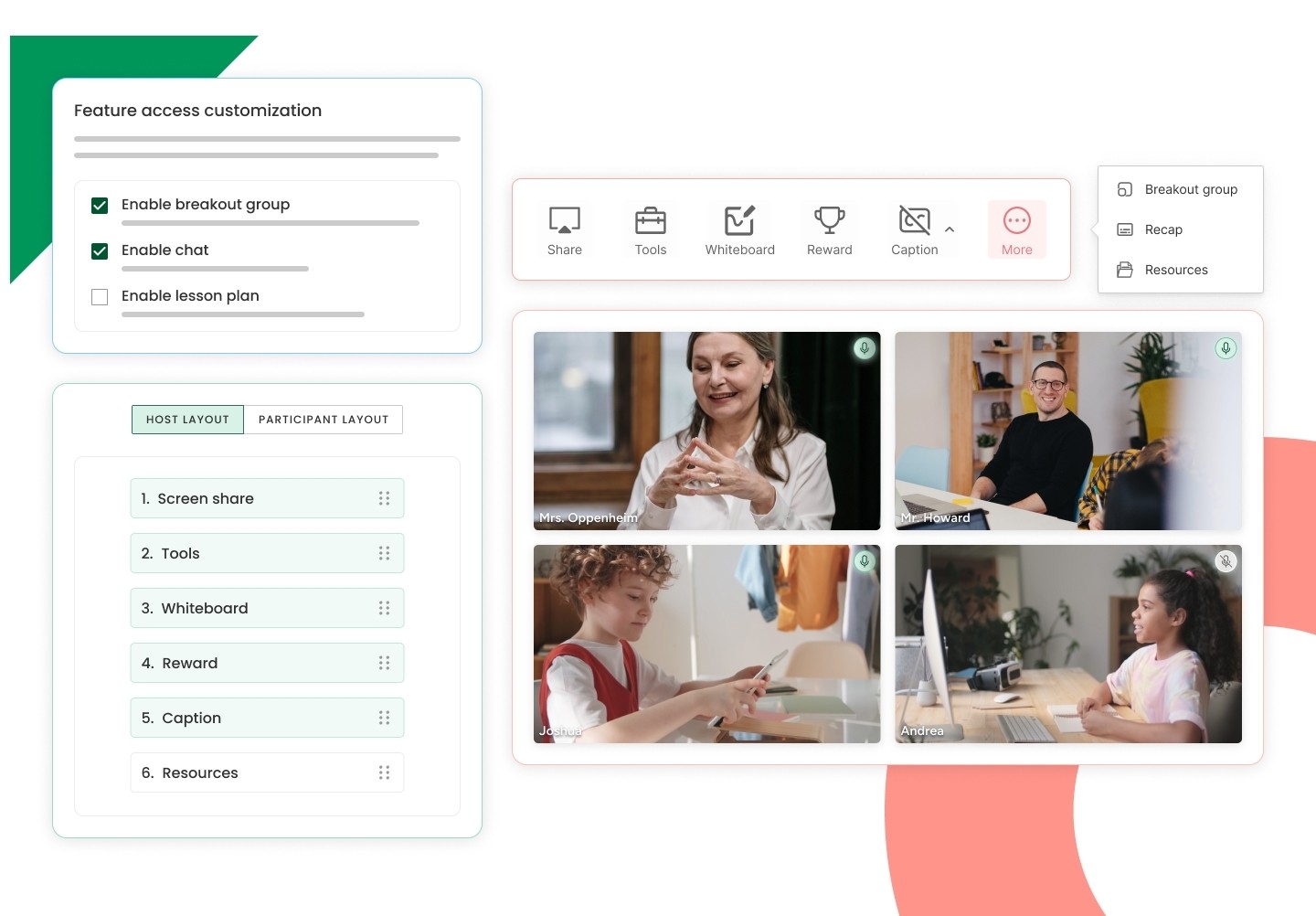
With Admin-Level Toolbar Customization, institutional administrators can now define exactly what that toolbar looks like across their organization. Through the HiLink Dashboard, under Organization Settings → Classroom Tools, admins can enable or disable specific tools, reorder them to reflect instructional priorities, and set separate configurations for teachers and students. No engineering support needed.
Once configured, the layout applies automatically to all new sessions as the organization-wide default.
For institutions that need more flexibility, the CreateMeeting API supports per-session overrides, useful for:
special programs,
different age groups
sessions with unique requirements.
The practical impact is meaningful: a K–12 school can remove screen sharing and reactions from the student toolbar to minimize distraction, while a corporate training team can surface only the tools relevant to their facilitation style. The interface becomes intentional rather than generic.
Classroom Permission Control
Screen sharing has always been a gap in classroom moderation. Teachers could mute microphones and disable cameras directly from the People panel, but screen sharing had no equivalent. Once access was granted, there wasn't much a teacher could do if something went wrong mid-session. In breakout rooms, the gap was even wider.
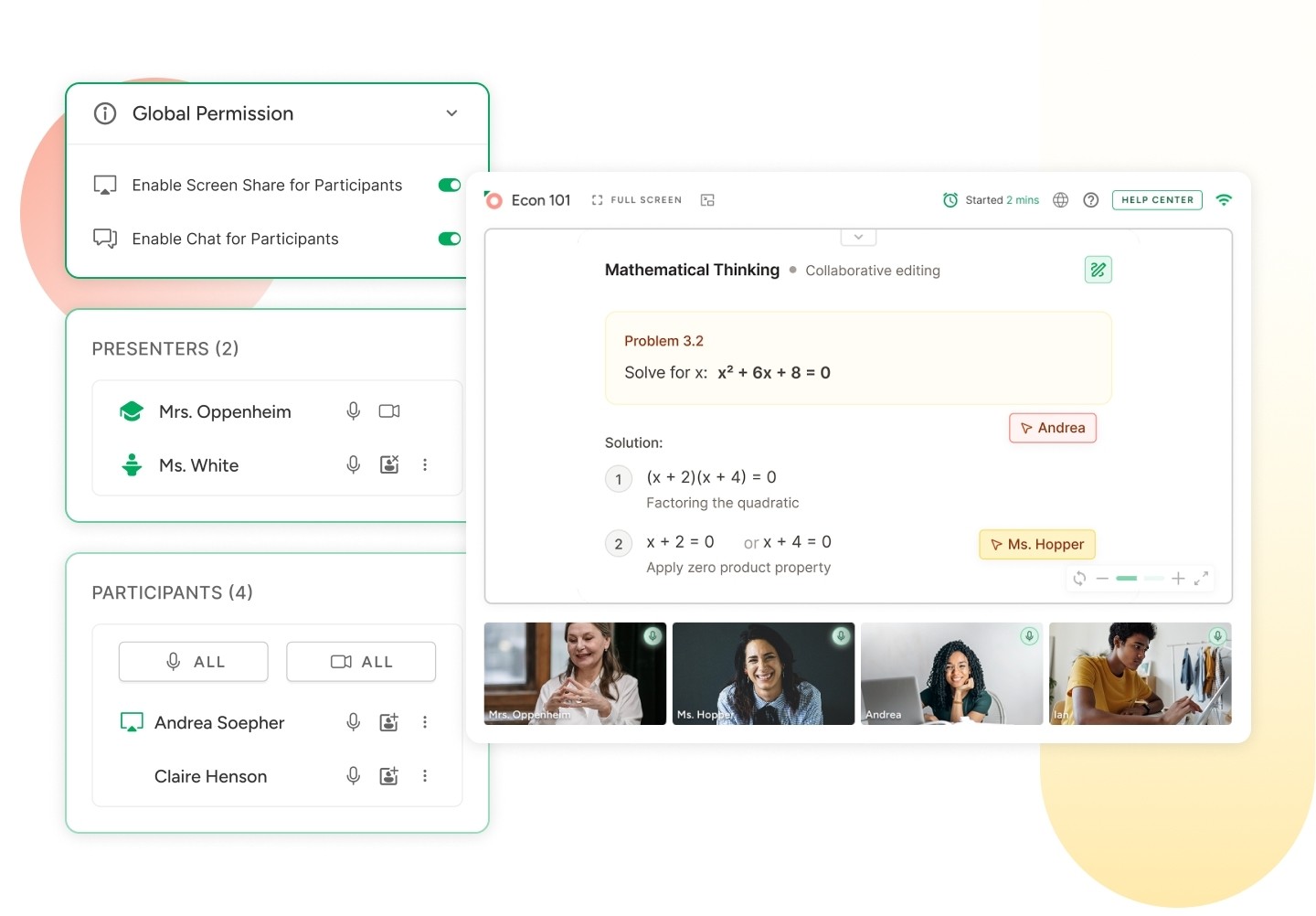
Classroom Permission Control closes that gap entirely.
Teachers can now manage screen sharing the same way they manage audio and video. That means a global toggle to enable or disable screen sharing across all participants at once, per-student controls for more targeted access, and the ability to force-stop an active share in real time. Individual permissions take priority over global settings, so teachers can make exceptions without disrupting the rest of the class. All of this works consistently across both the main room and breakout rooms.
For admins at institutions with strict content and conduct policies, this brings screen sharing in line with the moderation standard already applied to microphones and cameras and removes a meaningful point of risk.
Available Now
Both features are live for all eligible clients. Admin-Level Toolbar Customization is available for institutional clients and accessible directly from the HiLink Dashboard. Classroom Permission Control is available across all VCaaS clients.
If you have questions about configuration or getting started, reach out to your account team or visit the Help Center.